Walkthrough
What “no signup” actually means in QuickRoom
If you only need a thread for one assignment, one shift, or one client week, the expensive part is not the chat itself. It is the account, the phone number, and the group that never gets deleted. This page is the honest product walkthrough: what you click, what we store, and when you should not use QuickRoom.
Sponsored offer — optional, not required to create or join a room.
The four screens, in order
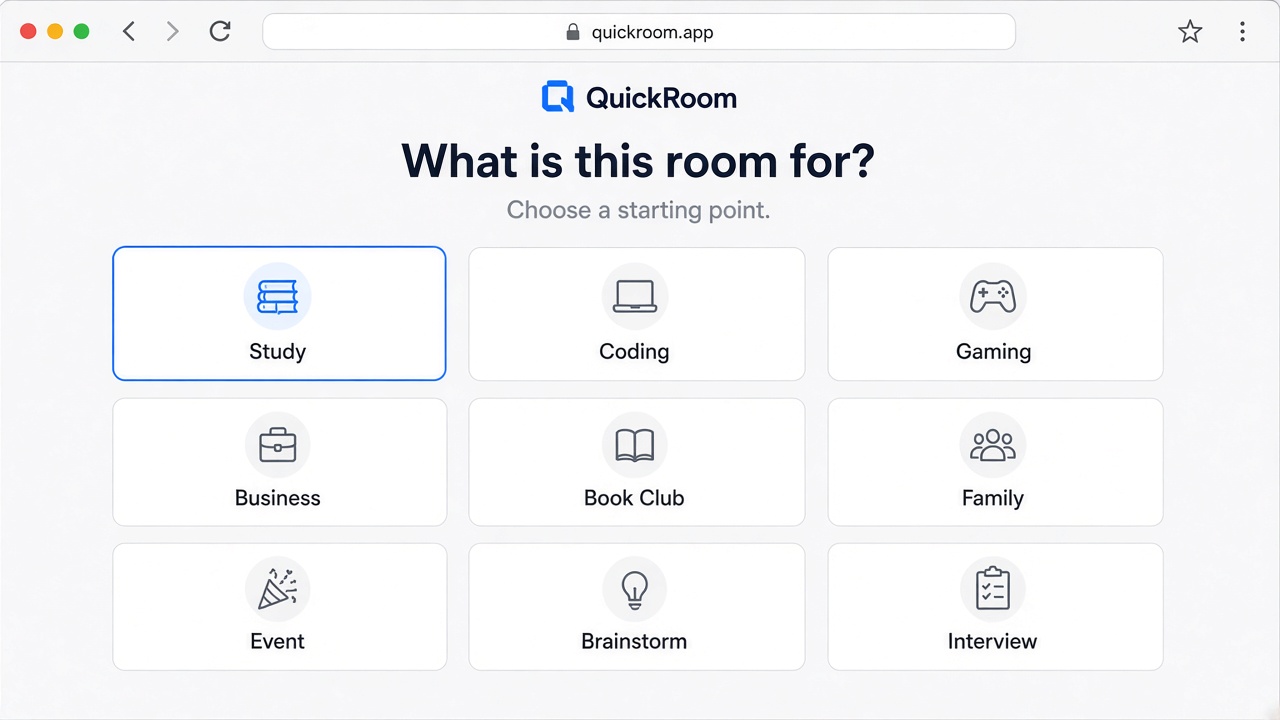
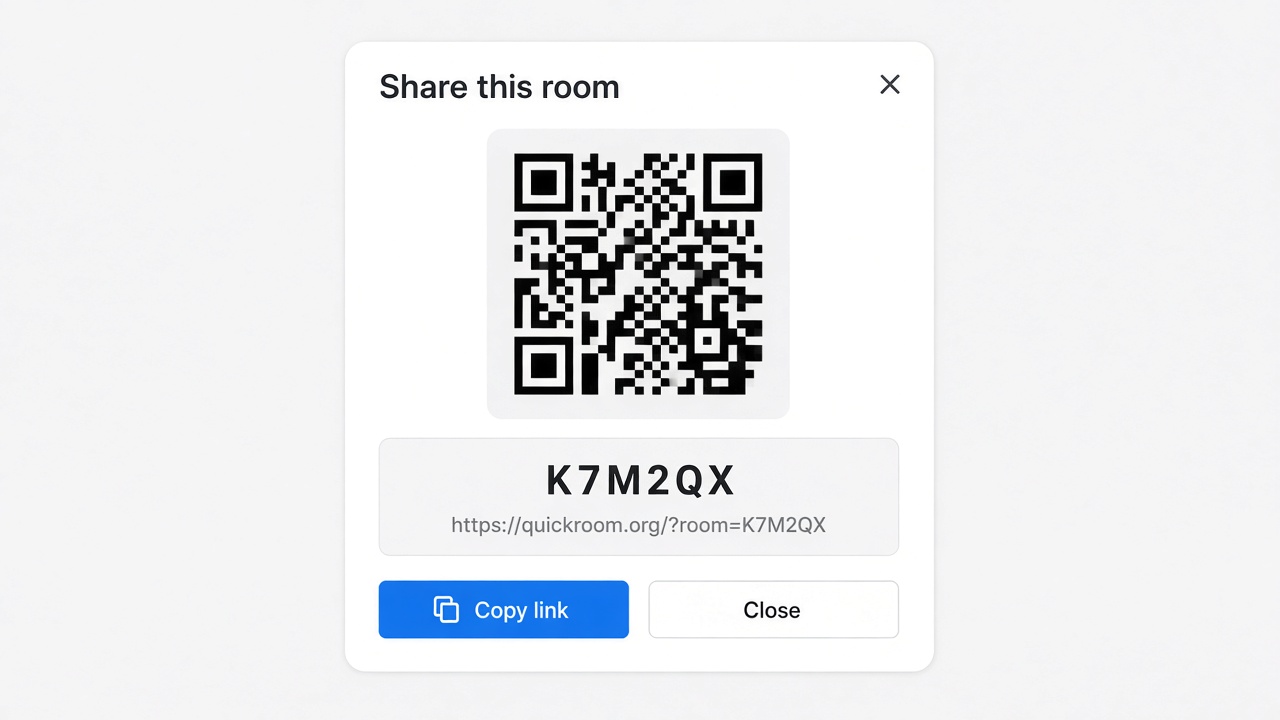
You choose a template so the room has a default name (Study, Event, Interview, and so on). Then you set expiry, pick a nickname, and decide whether the room is private or listed as public. After create, the share screen gives a code, a link of the form https://quickroom.org/?room=…, and a QR code.
Joining is the same nickname field plus that code. There is no password reset email because there is no password. The browser keeps an anonymous Firebase session so you can refresh without inventing a new identity every time.
What we do not collect
QuickRoom does not ask for an email address or phone number to create or join a room. We do not build a friend graph. Nicknames are chosen by the participant and are not verified identities.
Cloudflare still sees an IP and country the way any HTTPS site does. We use country only for aggregate pageview counts on public articles, not to profile people inside a room. Details are on the privacy page.
The code is the lock
Anyone who has the room code can attempt to join. That is a feature for speed and a risk if you post the code on a public story. For events, classes, clients, and travel, use Private (or Invite Only) and send the code in a channel that already knows who should be there.
Public topic rooms on the homepage are for people who want discovery. They are a different job. Do not put a client or a hiring panel in a public listing.
Jobs this is for — and jobs it is not
- For: revision sprints, hackathon weekends, volunteer shifts, interview backchannels, one-trip family planning, freelance handoffs.
- Not for: random stranger matching, adult video chat, or anyone under 18 (including K–12 classes).
- Not a records system: keep grades, ATS scorecards, invoices, and contracts where they already belong.
Inside the room
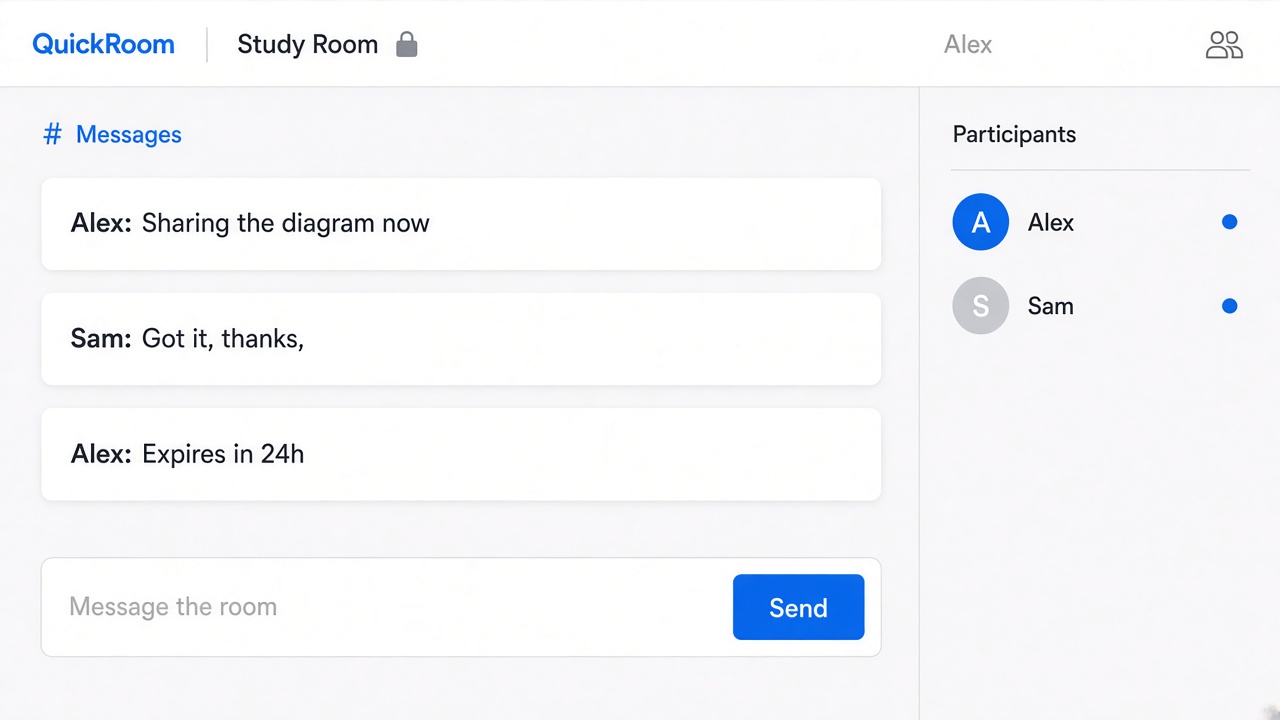
The product is group text chat, optional one-to-one chat if you enabled it at create time, and image sharing that follows the same expiry as the room. There are no ad units in the live conversation. If you leave, you can come back with the same link until the timer ends.
How to start
- Open QuickRoom and choose Create Room for a QuickRoom temporary chat.
- Pick a clear room name and an expiry that matches the real end of the work: an hour, a day, a week, or up to three months.
- Share the room code (or link/QR) with the people who need to join.
- Talk in the browser, share images if useful, then let the room expire when the moment is over.
Privacy and access
Temporary chat on QuickRoom is designed for short-lived coordination. Participants join with a room code and a nickname—no email address, phone number, or app install is required.
Treat the room code like an invitation. Share it only with the people who should be in the conversation, especially for Private or Invite Only rooms.
When the expiry you chose is reached, the room and its messages and images are cleaned up according to QuickRoom’s temporary-room lifecycle. That keeps the conversation from becoming another permanent group you never meant to keep.
Frequently asked questions
Is a QuickRoom temporary chat free to use?
Yes. Creating and joining a QuickRoom does not require a paid plan or an account for the core temporary chat experience.
Do people need to install an app?
No. Everyone joins from a modern browser with the room code and a nickname.
Do participants need phone numbers or email addresses?
No. QuickRoom uses anonymous browser identities for temporary rooms instead of permanent profiles.
How long does a room last?
You choose the expiry when you create the room. Common options include one hour, six hours, one day, one week, or three months.
Is a room code public?
Anyone who has the code can attempt to join. Share codes directly with the intended group and avoid posting them on public pages when the conversation should stay private.