Walkthrough
Anonymous nicknames, not a stranger queue
People say “anonymous chat” when they mean two different products. One is a roulette with strangers. The other is a class or crew that does not want to swap personal numbers for a two-hour job. QuickRoom is only the second.
Sponsored offer — optional, not required to create or join a room.
What “anonymous” means here
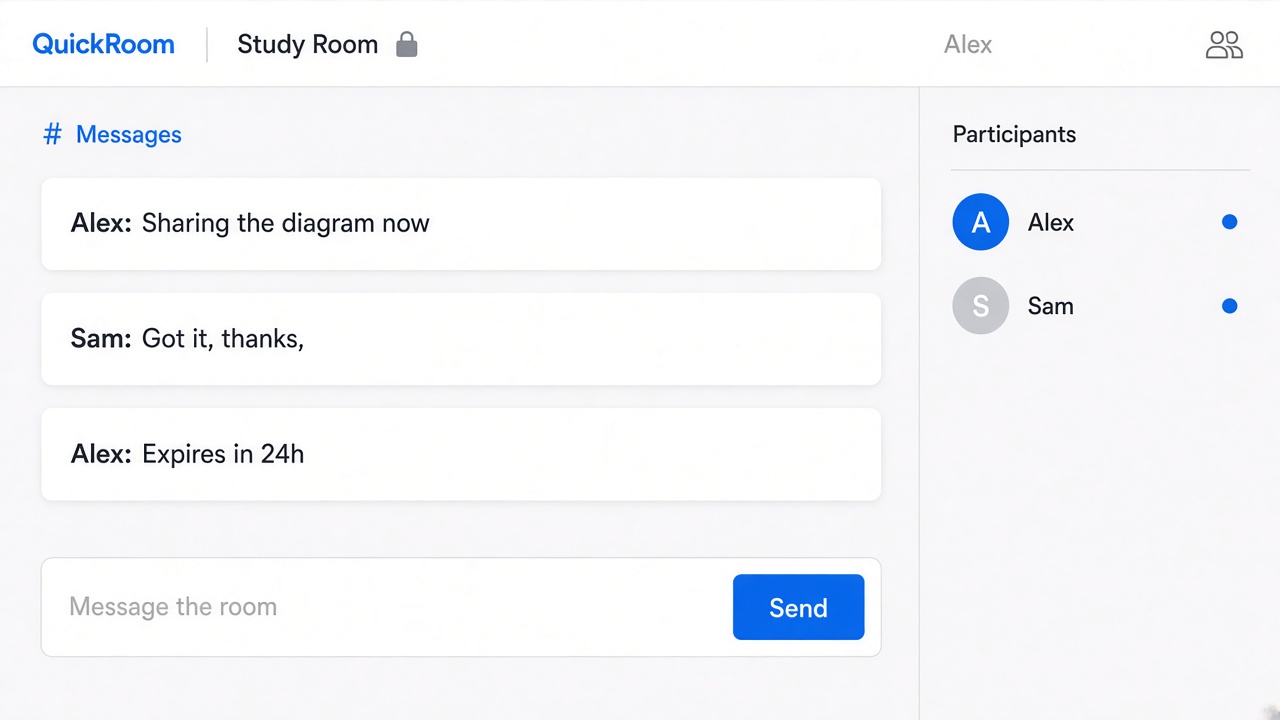
You are not asked for a legal name, email, or phone. Firebase Anonymous Authentication gives the browser a random ID for that session. Nicknames can be duplicated; they are labels, not accounts.
We can still see that a browser is in a room, and Cloudflare sees network metadata. “Anonymous” is not “invisible to the operator of the website.” Read the privacy policy if that distinction matters for your use.
Invite people you already intend to talk to
Share the code the same way you would share a meeting PIN: email thread, LMS group, calendar guests. Do not seed a public room and hope the right strangers arrive.
If you wanted random video chat, this product will feel empty and we will not add that feature. The 18+ gate exists so this does not become a kids’ hangout either.
When the nickname model is the wrong tool
- You need to prove who sent a message (use a named workspace).
- You must retain chat for legal or HR discovery (use the system your counsel already approved).
- Participants are under 18 (do not use QuickRoom).
How to start
- Open QuickRoom and choose Create Room for a QuickRoom temporary chat.
- Pick a clear room name and an expiry that matches the real end of the work: an hour, a day, a week, or up to three months.
- Share the room code (or link/QR) with the people who need to join.
- Talk in the browser, share images if useful, then let the room expire when the moment is over.
Privacy and access
Temporary chat on QuickRoom is designed for short-lived coordination. Participants join with a room code and a nickname—no email address, phone number, or app install is required.
Treat the room code like an invitation. Share it only with the people who should be in the conversation, especially for Private or Invite Only rooms.
When the expiry you chose is reached, the room and its messages and images are cleaned up according to QuickRoom’s temporary-room lifecycle. That keeps the conversation from becoming another permanent group you never meant to keep.
Frequently asked questions
Is a QuickRoom temporary chat free to use?
Yes. Creating and joining a QuickRoom does not require a paid plan or an account for the core temporary chat experience.
Do people need to install an app?
No. Everyone joins from a modern browser with the room code and a nickname.
Do participants need phone numbers or email addresses?
No. QuickRoom uses anonymous browser identities for temporary rooms instead of permanent profiles.
How long does a room last?
You choose the expiry when you create the room. Common options include one hour, six hours, one day, one week, or three months.
Is a room code public?
Anyone who has the code can attempt to join. Share codes directly with the intended group and avoid posting them on public pages when the conversation should stay private.